

Quick answer: how to add a user to Google Analytics
To give access to Google Analytics, open Admin, choose Account access management, click the + button, enter the person’s email address, pick a role, then click Add. The whole job takes under two minutes, and this guide walks you through every click with screenshots.
We ask every new client to do this during onboarding, so we recorded the exact process. Watch the video below, or follow the written steps at your own pace.
Before you give access to Google Analytics
You only need two things. First, you must hold the Administrator role yourself, because only Administrators can manage users. If you set up the account, you almost certainly have it. Second, you need the email address of the person or agency you are adding. It must be a Google account, which includes Gmail addresses and Google Workspace business addresses.
One distinction worth knowing before you start: GA4 lets you grant access at account level or at property level. Account access covers everything, while property access covers a single website or app. When an agency runs your marketing, account-level access is the practical choice, and it is what these steps grant.
Add a user to Google Analytics in six steps
The six steps below match the video exactly. Together they take about two minutes.
Step 1: Open Admin
Sign in at analytics.google.com, then click the Admin gear icon at the bottom of the left-hand menu. As a shortcut, GA4 also surfaces it under “Recently accessed” on the Home screen once you have used it.
Step 2: Click Account access management
Inside Admin, look under Account settings, then click Account access management. Be careful not to confuse it with Property access management, which sits further down and only covers one property.
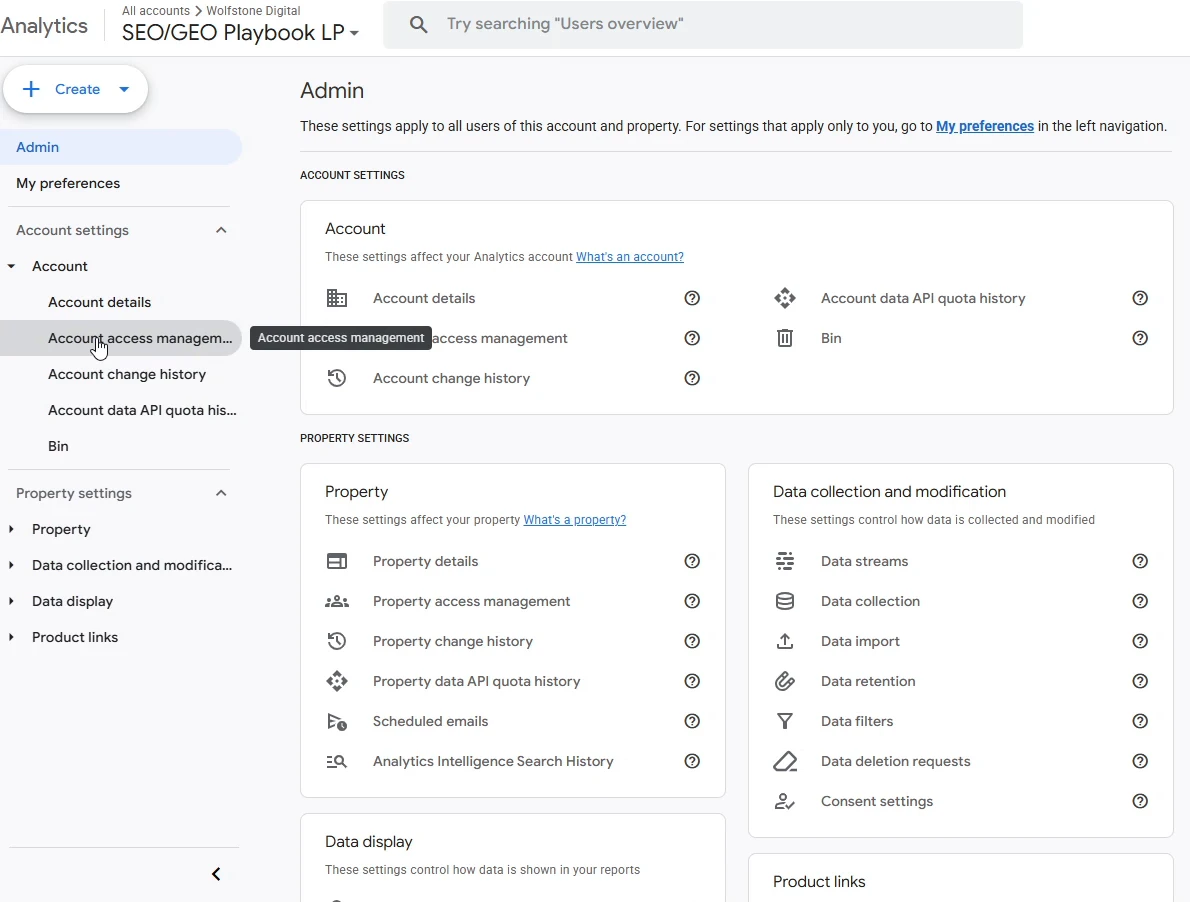
Step 3: Click the + button, then Add users
A panel opens listing everyone who currently holds access. In the top-right corner, click the blue + button, then choose Add users.

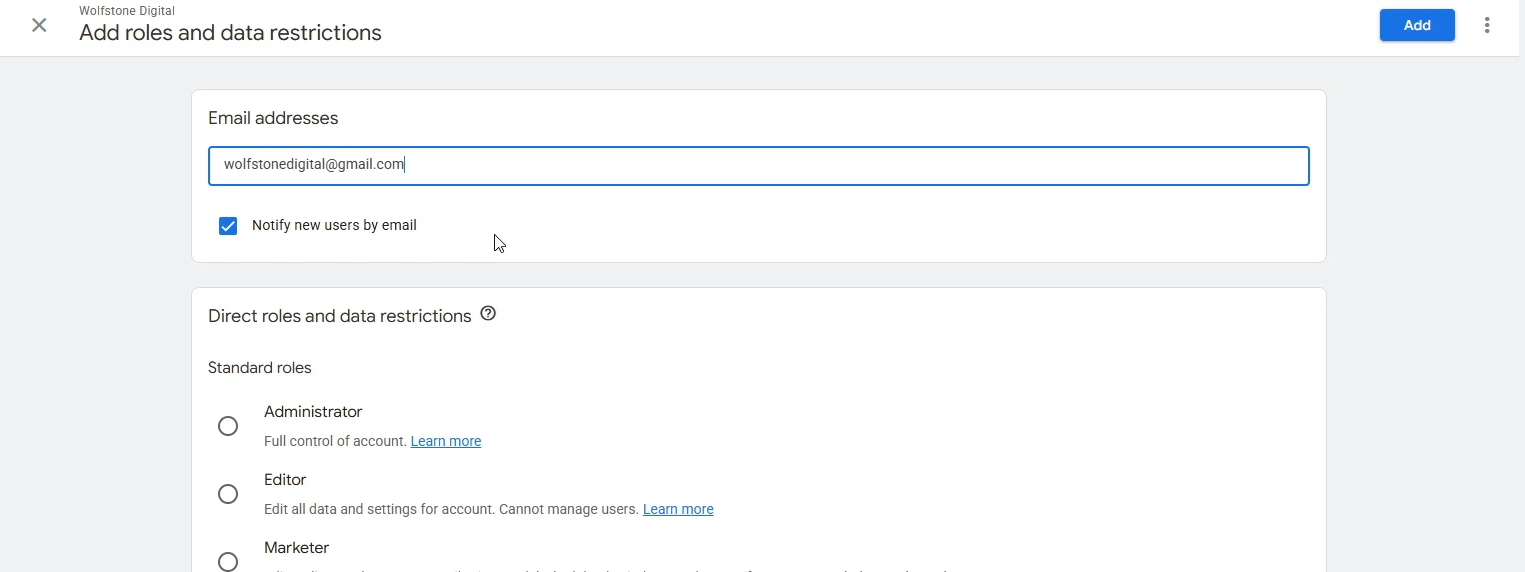
Step 4: Enter the email address and tick notify
Type the email address of the person you are adding. If you are working with us, that address is wolfstonedigital@gmail.com. Then leave Notify new users by email ticked, because it sends an automatic confirmation and saves you having to tell anyone the access is live.
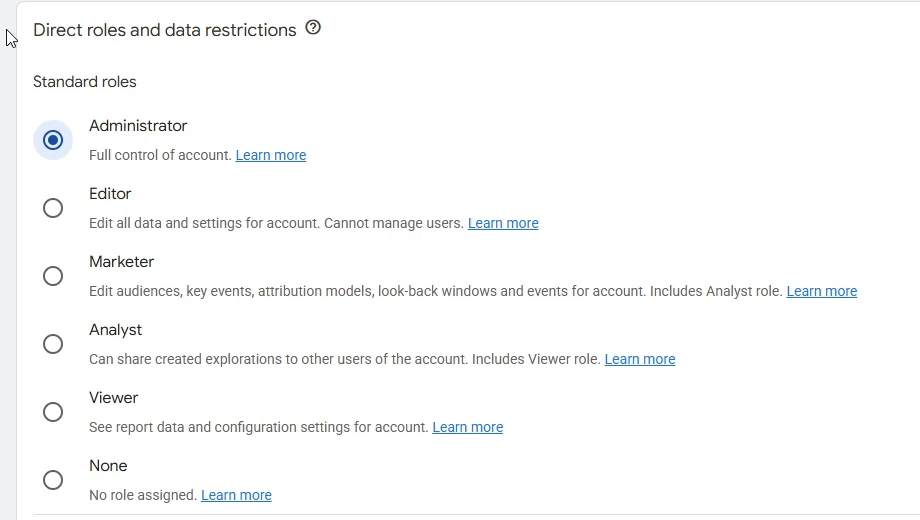
Step 5: Choose the role
Next, select a role under “Direct roles and data restrictions”. For an agency running your SEO or paid media, choose Administrator, since it removes the back-and-forth of requesting extra permissions later. The full role breakdown is in the table below.
Step 6: Click Add
Finally, click the blue Add button in the top-right corner. That is it. If you left the notify box ticked, the new user receives an email straight away and can sign in immediately.
Which Google Analytics role should you choose?
| Role | What it can do | Give it to |
|---|---|---|
| Administrator | Full control, including managing users | Your agency or a trusted lead |
| Editor | Edit all data and settings, cannot manage users | In-house marketers |
| Marketer | Edit audiences, key events and attribution | Campaign managers |
| Analyst | Create and share explorations | Data analysts |
| Viewer | See reports and settings only | Stakeholders who just read reports |
If you would rather start an agency on Editor and upgrade later, that works too. However, expect one extra request when they need to connect products such as Search Console, because those links sit behind Administrator rights.
Frequently asked questions
Can I give access to Google Analytics without making someone an Administrator?
Yes. Pick any role in step 5, and the person only sees what that role allows. Viewer is the safest starting point, because it grants read-only access to reports.
How do I add someone to Google Analytics for one property only?
Follow the same steps, but choose Property access management in step 2 instead. The person then sees that single property and nothing else in the account.
How do I remove someone’s access later?
Return to Account access management, tick the box next to their name, then choose Remove access. The change applies immediately, and nobody is notified.
Why can I not see Account access management?
Because your own role is below Administrator. Ask whoever set up the account to upgrade you, or ask them to add the new user directly.
Working with Wolfstone?
Add wolfstonedigital@gmail.com as an Administrator and we will confirm by email the moment it lands. Stuck on any step? Call us on 01284 598125 or email hello@wolfstone.digital and we will walk you through it.
Analytics shows which pages turn visits into enquiries, which is the half of SEO that rankings never reveal. It is one of the first things we connect on an SEO audit.
Next in this series: how to give access to Google Search Console and how to add a manager to Google Business Profile.