

Quick answer: how to add a user to Google Search Console
To give access to Google Search Console, open Settings in the left-hand menu, click Users and permissions, press Add user, enter the person’s email address, set the permission level, then click Add. It takes about a minute, and every step is shown below with screenshots.
We ask every new client to do this when we start work together, so we filmed the exact process on a real account. Watch the video, or follow the written version underneath.
Before you give access to Google Search Console
Two quick checks first. You need to be an Owner of the property, because only owners can add users. If you verified the site yourself, you are one. You also need the email address of the person or agency you are adding, and it must be a Google account, which covers Gmail and Google Workspace addresses.
If you manage several sites, also check the property picker in the top-left corner shows the right domain before you begin. Access is granted per property, not per Google account.
Add a user to Google Search Console in five steps
The five steps below match the video exactly.
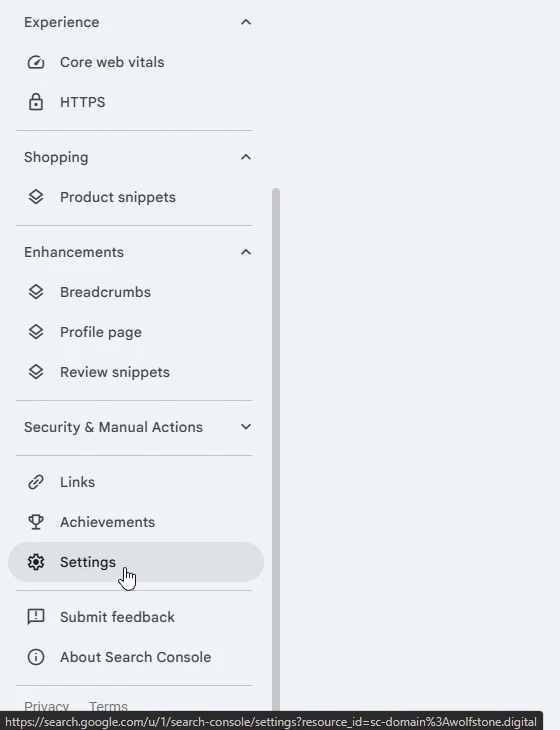
Step 1: Open Settings
Sign in at search.google.com/search-console, then scroll to the bottom of the left-hand menu and click Settings.
Step 2: Click Users and permissions
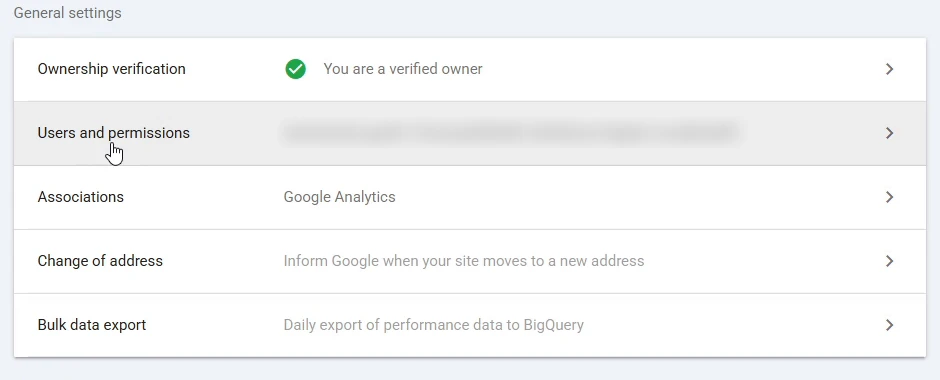
On the Settings screen, click the Users and permissions row. It also shows you everyone who currently holds access, which is worth a glance while you are here.
Step 3: Click Add user
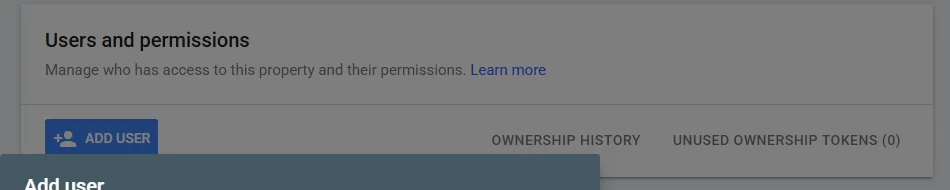
In the top-left of the user list, click the blue ADD USER button. A short form opens.
Step 4: Enter the email address and set the permission
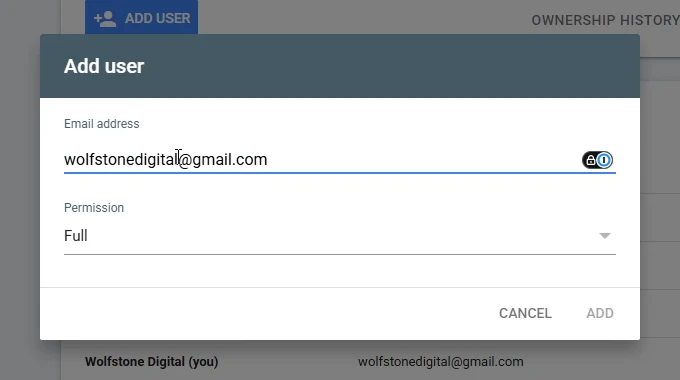
Type the email address of the person you are adding. If you are working with us, that address is wolfstonedigital@gmail.com. Then set the permission dropdown to Full, which is what an agency needs for day-to-day SEO work. The levels are compared in the table below.
Step 5: Click Add
Finally, press ADD. The change is immediate, and the new user sees the property the next time they open Search Console. We also receive a notification email, so if you are adding us there is nothing else to send over.
Owner, Full or Restricted: which permission should you choose?
| Permission | What it can do | Give it to |
|---|---|---|
| Owner | Everything, including adding and removing users | You, plus a second in-house backup |
| Full | View all data and take most actions | Your SEO agency |
| Restricted | View most data, no actions | Stakeholders who only need reports |
Full permission covers almost everything an agency does day to day, including submitting sitemaps, inspecting URLs and requesting indexing. However, a few jobs stay owner-only, such as changing the site address or managing other users, so some agencies may eventually ask for delegated ownership. We rarely need it, and Full is the sensible default.
Frequently asked questions
Is it safe to give access to Google Search Console?
Yes, provided you pick the right level. Search Console holds performance data rather than money or ad budgets, so the worst case is far smaller than with Google Ads. Even so, grant Full rather than Owner unless there is a clear reason, because owners can remove other users.
How do I add a user to Google Search Console for just one site?
Access already works that way. Permissions apply per property, so repeat these steps inside each property you want to share and leave the rest untouched.
How do I remove someone’s access later?
Go back to Users and permissions, click the three-dot menu next to their name, then choose Delete user. The change applies immediately.
Why is the Add user button greyed out for me?
Because you hold Full or Restricted permission rather than ownership. Ask an existing Owner to add the new user, or to upgrade you first.
Working with Wolfstone?
Add wolfstonedigital@gmail.com with Full permission and we will confirm by email as soon as it arrives. Stuck on any step? Call us on 01284 598125 or email hello@wolfstone.digital.
Search Console is the first place we look on any SEO audit, because it shows which searches you already appear for and are not winning. What we do with that data is covered on our SEO services page.
Next in this series: how to give access to Google Analytics (GA4) and how to add a manager to Google Business Profile.